This is the user guide for Duplicacy Web Edition. The user guide for the old GUI version can be found here.

Installation

On Windows and macOS, Duplicacy Web Edition is provided as installers. Installation is needed before you can start the executable.

On Linux, Duplicacy Web Edition is provided as executables and no installation is required. You may move the downloaded executable to a directory pointed to by the environment variable PATH and rename it to a shorter name (such as dwe_main) for quick typing (please note that if the new name doesn't have the dwe_ prefix than it is treated as a customized version).

Setting up the Master Password

The first thing you need to do after you start Duplicacy Web Edition for the first time, is to choose a master password. As the following page indicates, this master password is used to encrypt all storage-related credentials which can then be stored safely in a configuration file. Duplicacy Web Edition will store the secure token derived from this password, instead of the password in plaintext, in the OS-specific password storage such as Keychain or Keyring. If such a password storage isn't available, Duplicacy Web Edition will ask you to enter this password on every restart.
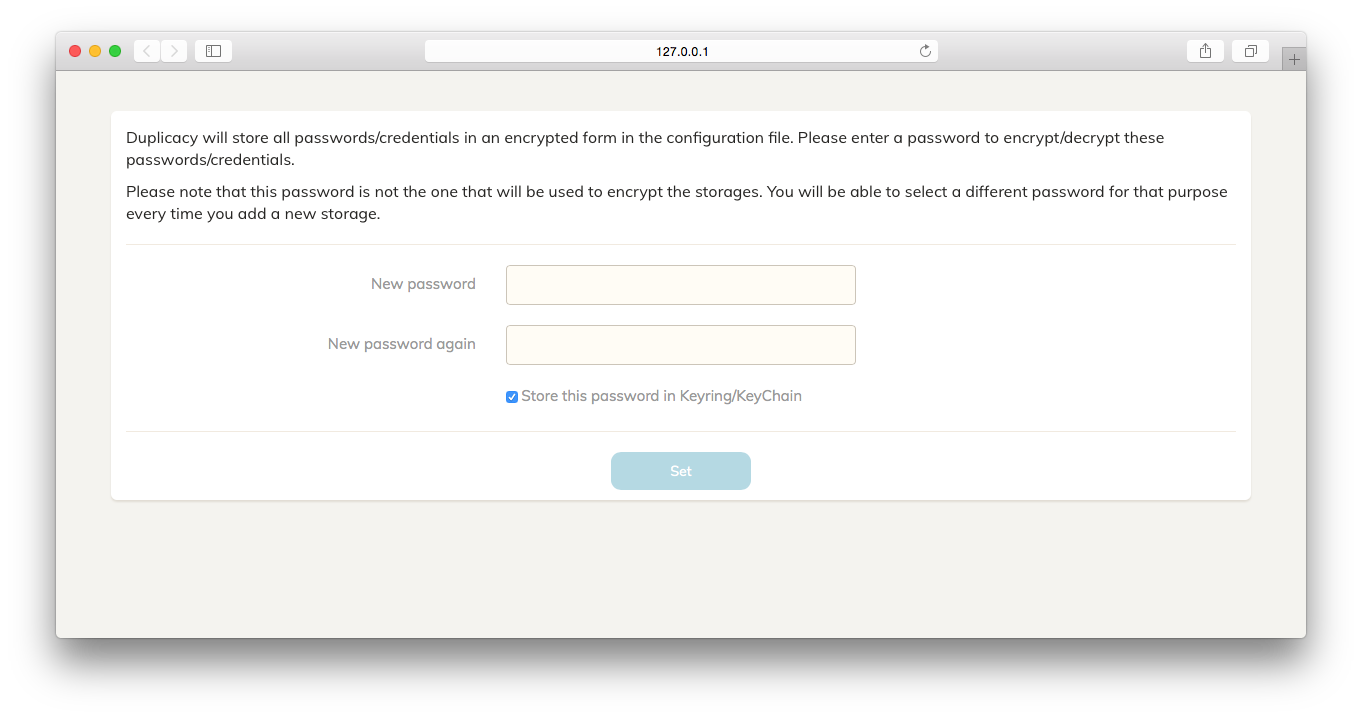
Duplicacy Web Edition Master Password

After you enter the master password, you will be presented with the dashboard page, which is basically a blank template at this time.
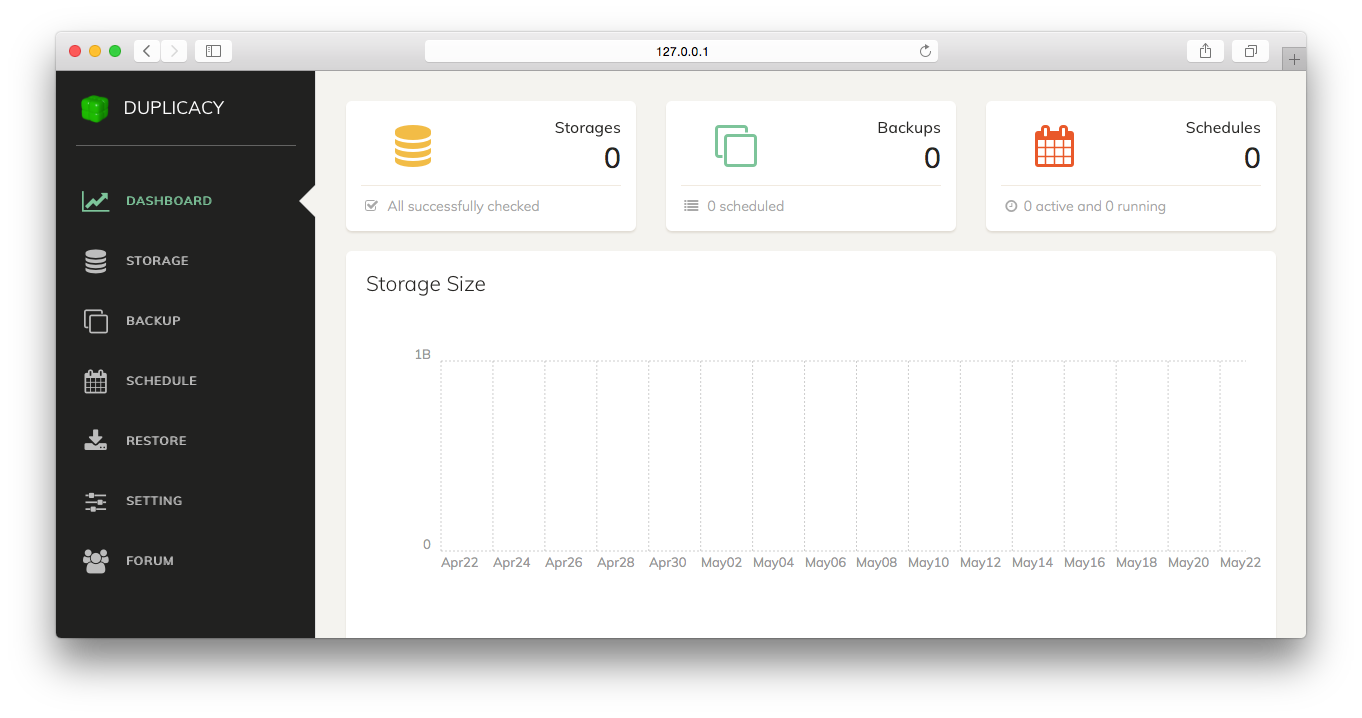
Duplicacy Web Edition Dashboard

Adding a Storage

A storage is the destination that your backups will be stored to. To add a storage, click Storage in the navigation menu on the left and the following dialog will appear:
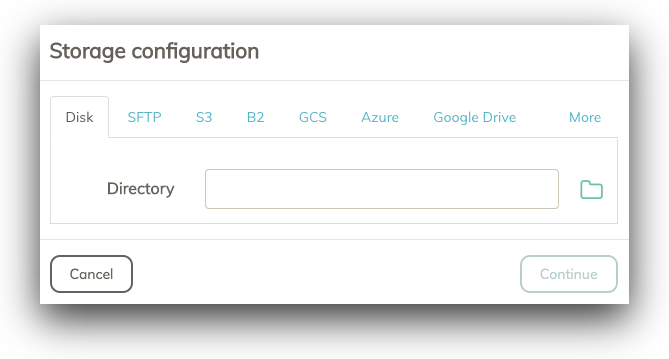
Duplicacy Web Edition Storage

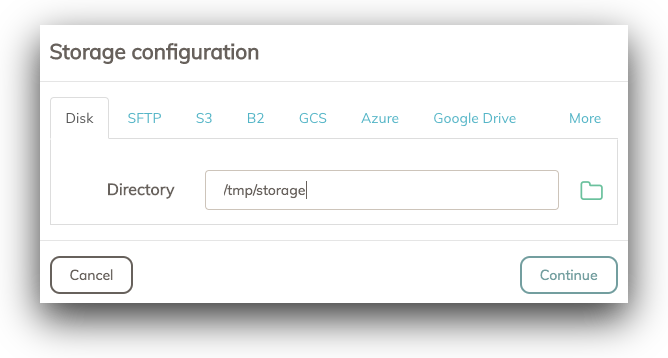
Here you can add different types of storages all supported by Duplicacy Web Edition. Using the disk-based storage as an example, you can enter the storage path directly, or click on the directory button next to the text input to invoke the directory selection dialog:
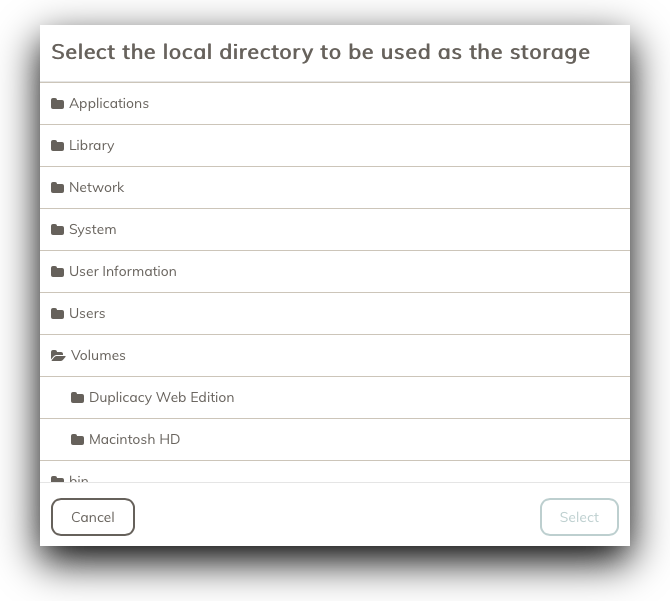
Duplicacy Web Edition Local Directory

You can expand a directory by clicking the icon next to the directory name. Once you select a directory by clicking on any area in a row other than the directory icon, the Select button will become enabled, letting you select the highlighted directory and close the directory selection dialog. At this time, the directory text input will be automatically filled with the directory you just chose:
Duplicacy Web Edition Local Directory

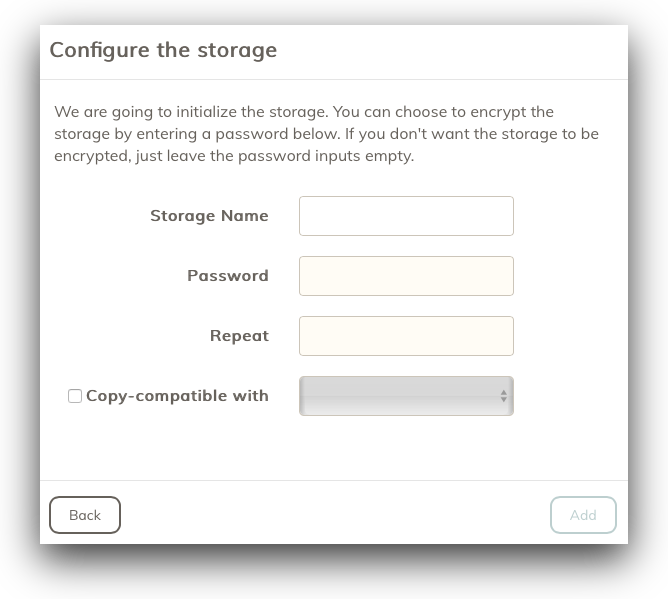
After you select (or manually enter) a directory as the storage, you can now click the Continue to move to the next step of storage configuration:
Duplicacy Web Edition Storage Configuration

On this page, Duplicacy Web Edition will ask you for the name of the storage to be added. This storage name must be unique. Besides, if the storage has not been initialized before, it will also ask you for an optional password to encrypt the storage. It is strongly recommended to use an encryption password if the storage is on a cloud service. If you don't want to encrypt the storage, you can leave the password inputs empty.

The Copy-Compatible checkbox is for the copy operation -- the destination storage of a copy operation must be copy-compatible with the source storage.

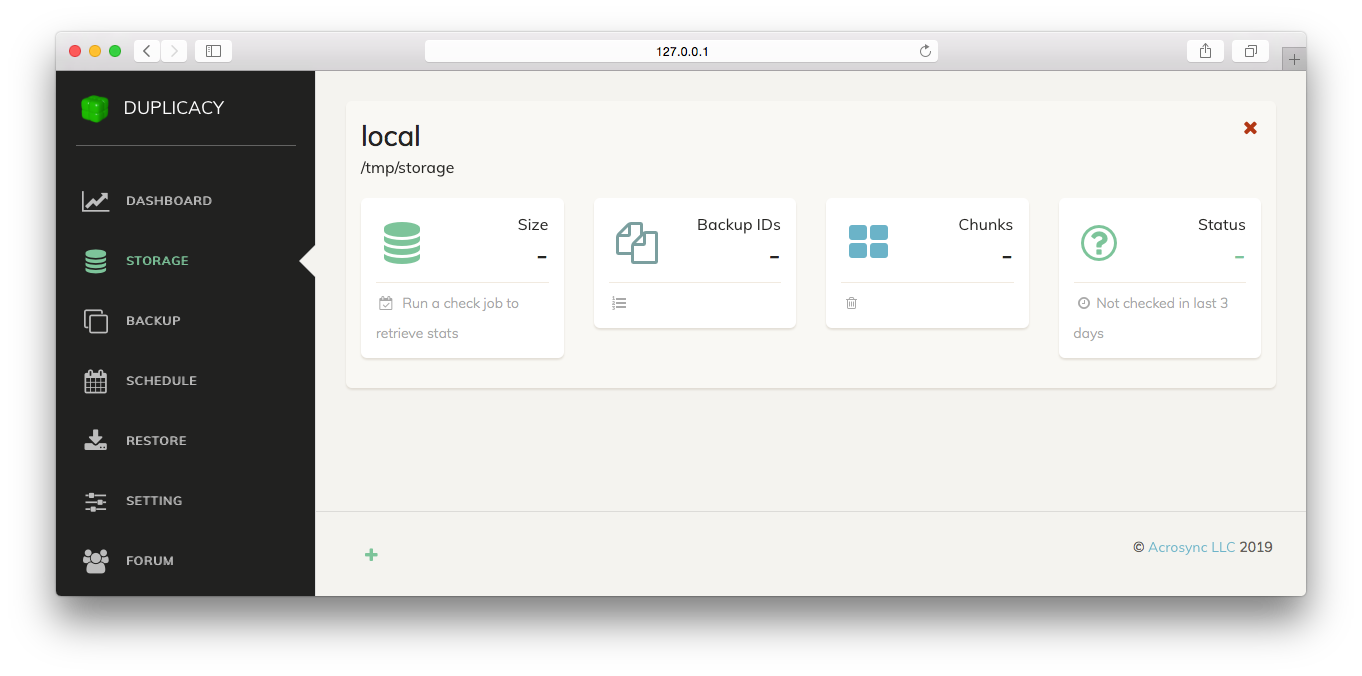
Once you finish configuring the storage, click the Add button and Duplicacy Web Edition will run the Duplicacy CLI version to initialize the storage (if uninitialized). Afterwards, the Storage page will be updated with the newly added storage:
Duplicacy Web Edition Storage Added

The newly added storage doesn't have any statistical information yet, which will become available after you add and run a Check job for this storage.

Adding a Backup

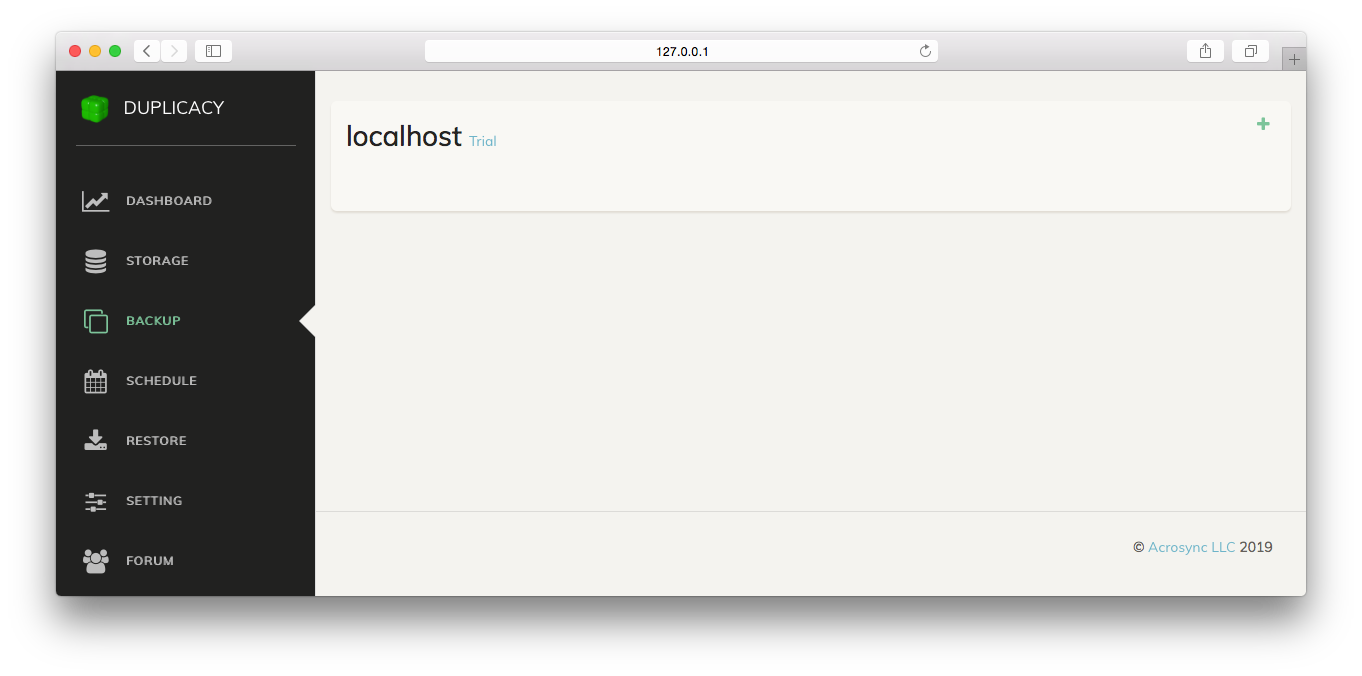
To add a backup, first switch to the Backup page:
Duplicacy Web Edition Backup Start

You'll notice the localhost label. This represents the local computer that Duplicacy Web Edition is currently running on. There is a Trial link next to it indicating that Duplicacy Web Edition has automatically downloaded a trial license. If you have a personal or commercial license you can click the Trial link and enter the license activation code to apply the license.

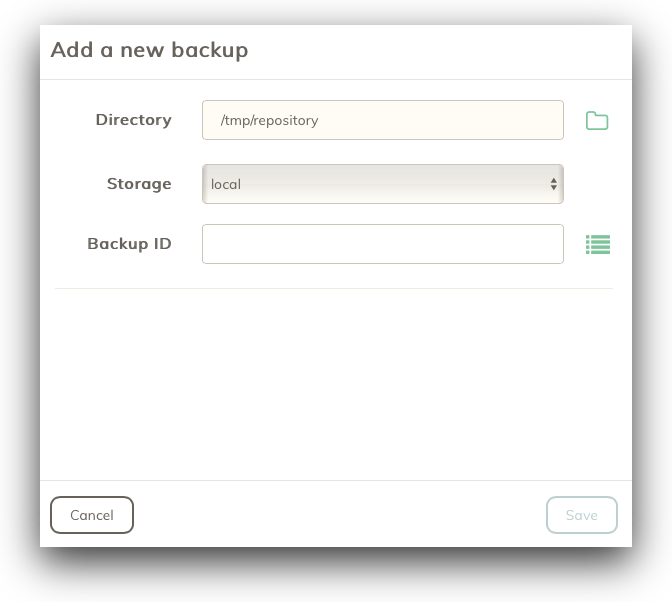
Click the green plus sign on the top right corner and this dialog will appear:
Duplicacy Web Edition Backup New

Here you can select the directory to back up, the storage to back up to, and the Backup ID. Duplicacy supports multiple computers backing up to same storage (in order to exploit cross-computer deduplication), and on each computer you may have multiple directories. The Backup ID is used as the ID of the backups created for each directory.

When you're creating a new backup, generally you'll need to select a unique Backup ID that is different from existing ones. You can find out what existing Backup IDs by clicking the list button next to the Backup ID input. However, there are cases when you want to use an existing one. For example, when you need to restore a directory on a different computer, you'll need to choose the original Backup ID that was used to create the backups for that directory.

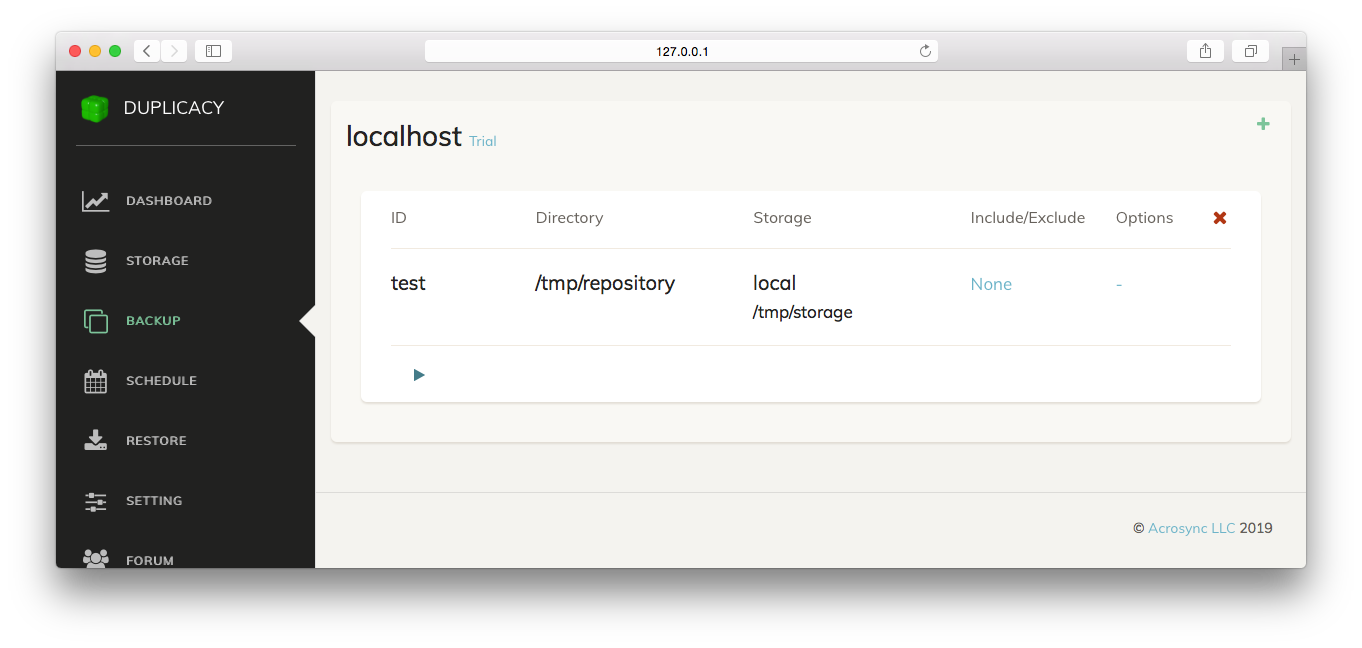
The following Backup page shows the new backup just added. You can click the Include/Exclude column to specify which files will be included in or excluded from the backup, and the Options column to specify extra options for the backup operation.
Duplicacy Web Edition Backup Added

Adding a Schedule

At this time you can manually run backups by clicking the triangle button at the bottom of each backup. However, to run the backup (or other operations) regularly, you'll need to create schedules.

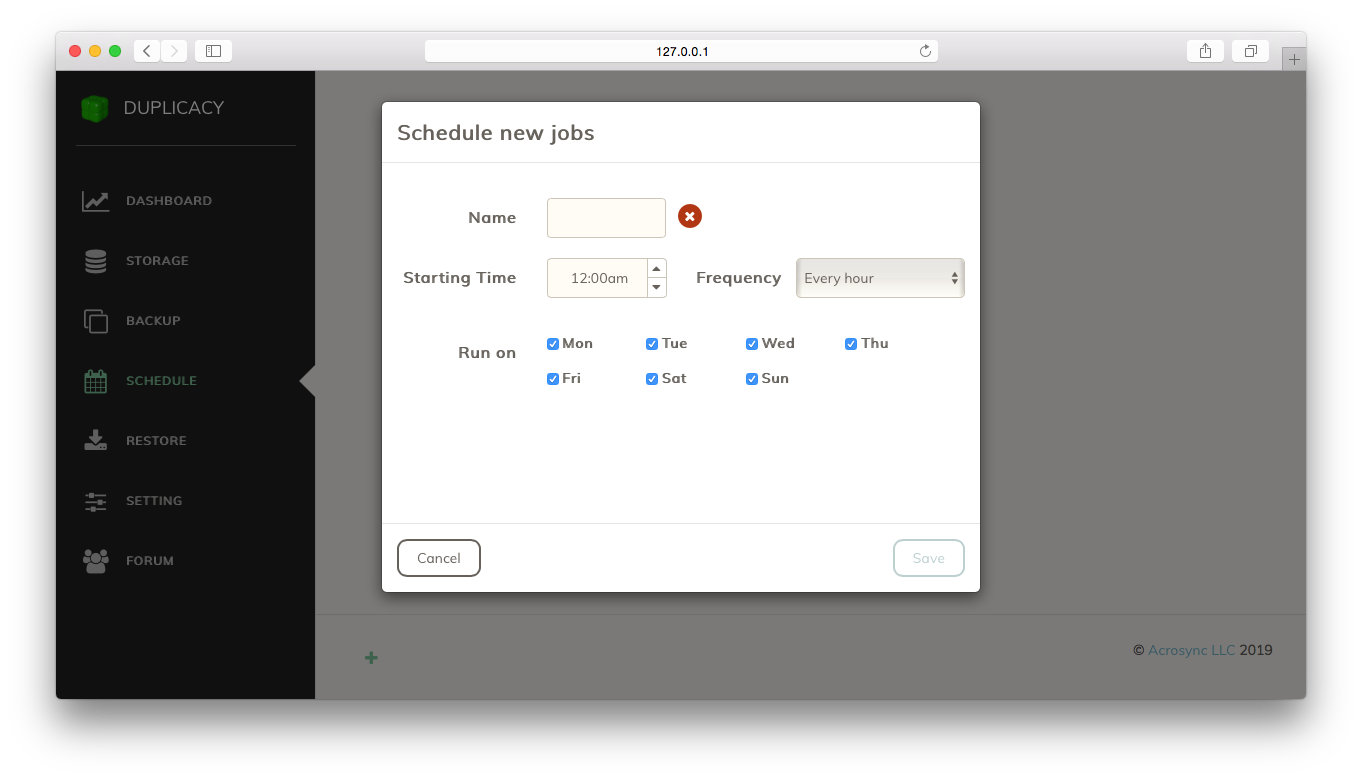
When you visit the Schedule page, it will ask you to set up a new schedule:
Duplicacy Web Edition Schedule New

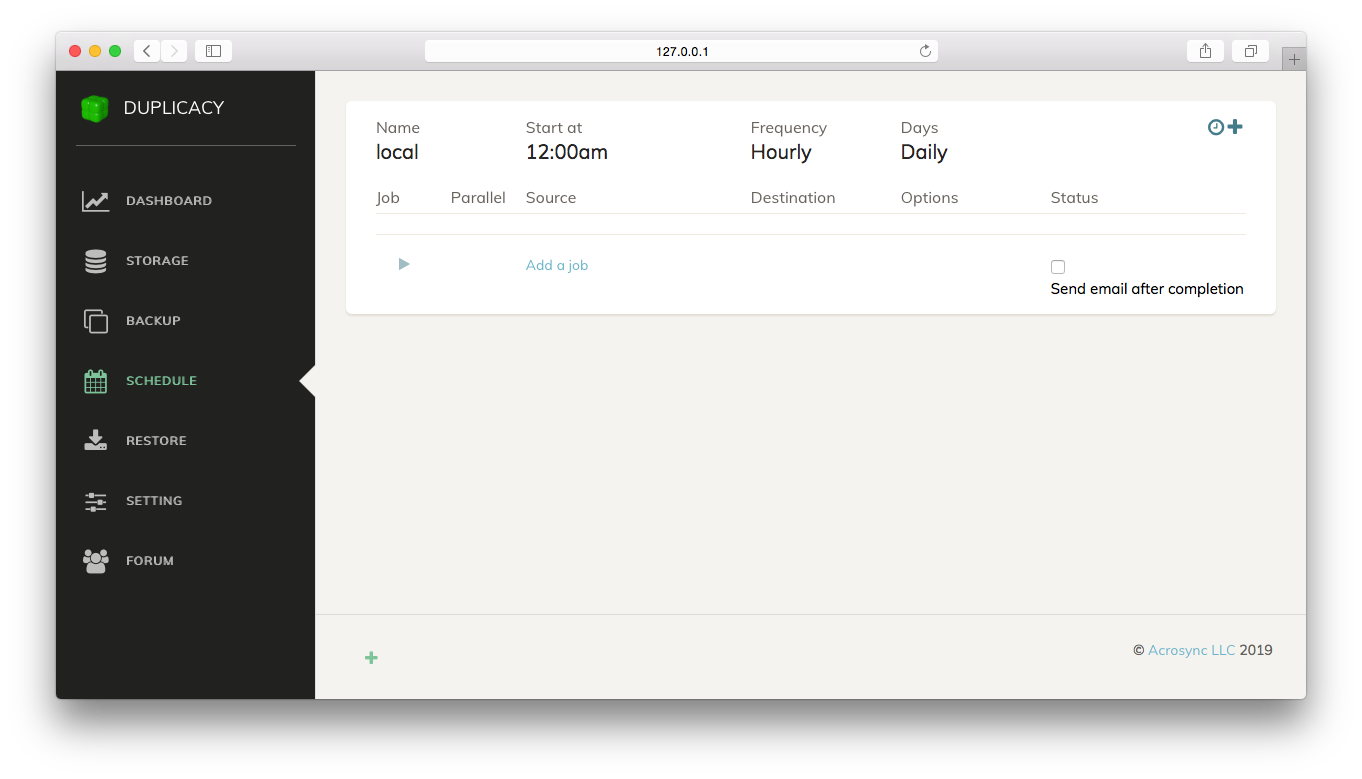
This is how it looks after you choose the starting time, the frequency, and the days on which the schedule will run:
Duplicacy Web Edition Schedule Added

The schedule doesn't have any jobs yet. You can add new jobs by clicking the Add a job link or the plus sign at the top right corner. There are 4 types of jobs: backup, check, copy and prune.
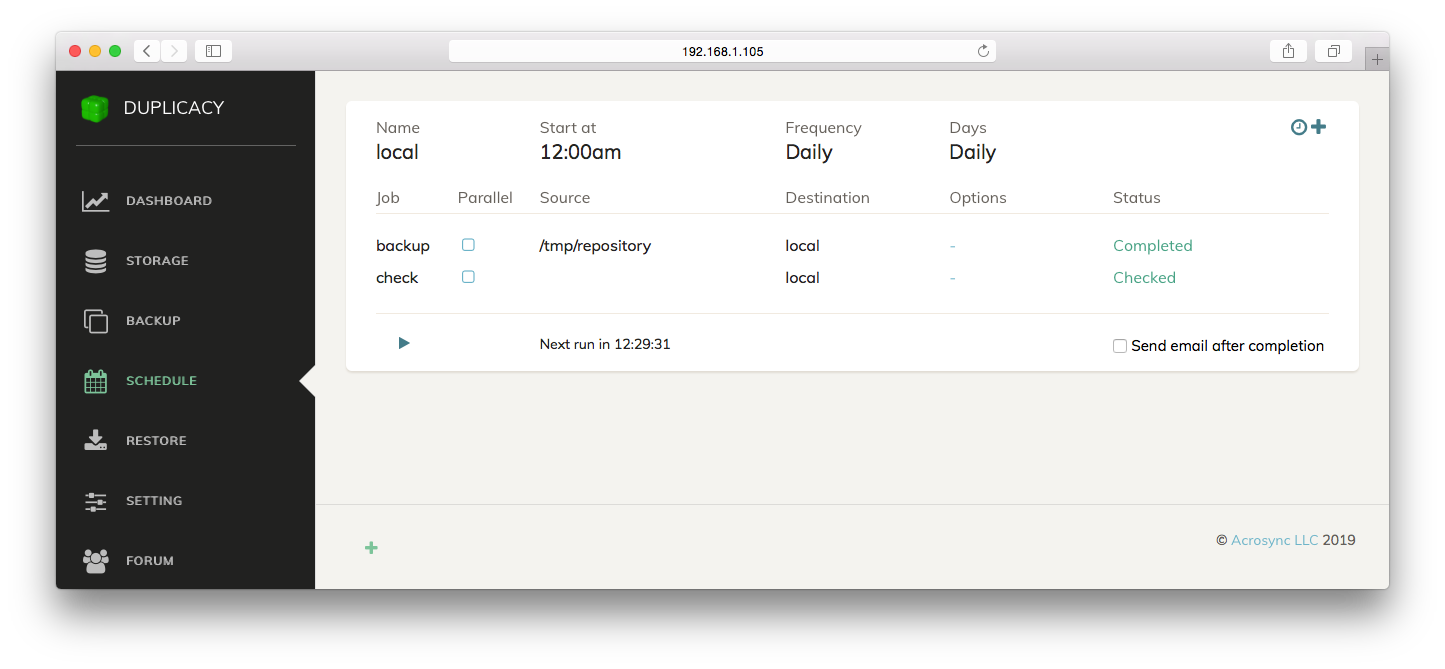
Duplicacy Web Edition Job Added

After a job has been added, you can set the execution mode of the job to Parallel. A parallel job will be run at the same time with the previous job if the previous job is also a parallel job. You can also specify extra options to any job. When you highlight a job by clicking the row, you will be able to reposition the job in the list to change the execution order.

Restore

You may have noticed that there isn't a restore job. To restore files from an existing backup, you'll need to open the Restore page, and manually perform the restore operation as follows.
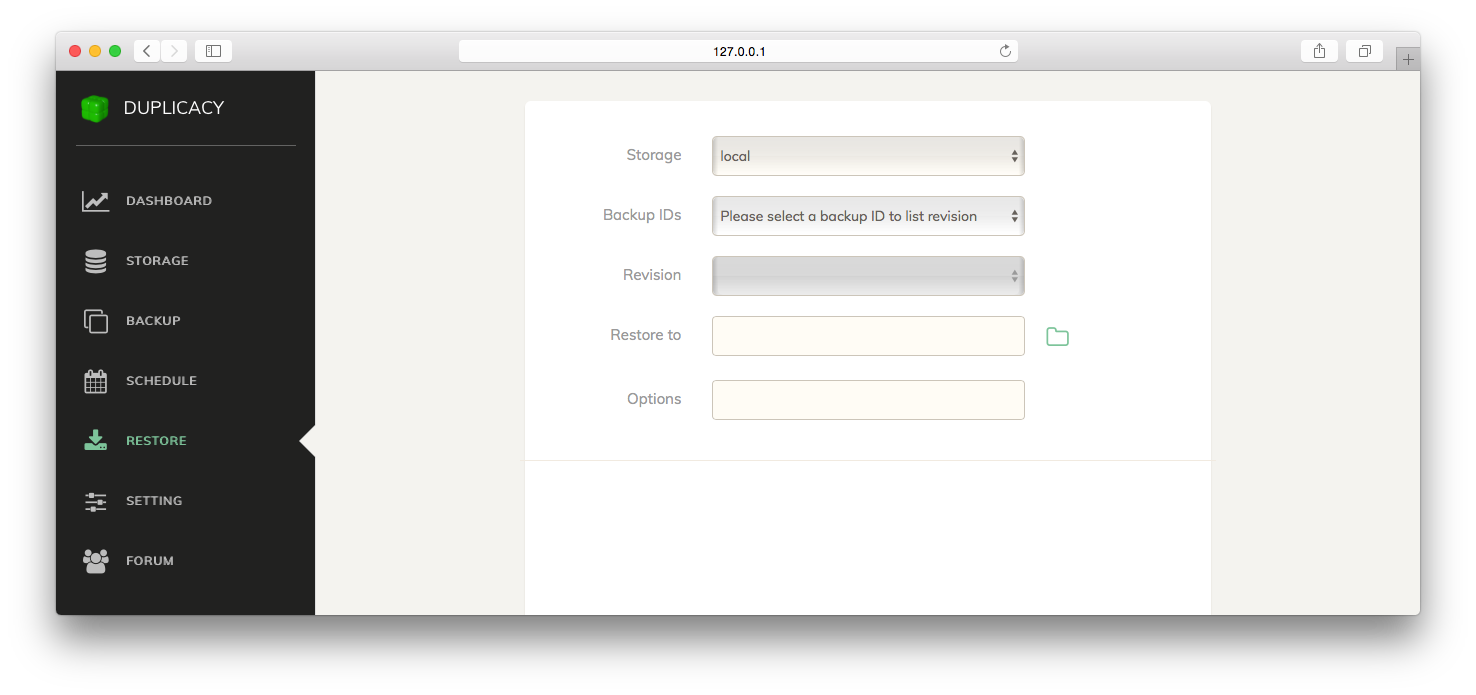
Duplicacy Web Edition Restore

First, select the storage where the backup resides. Then select the Backup ID of the backup. This Backup ID is what you chose when creating the backup. After that, select the revision number of the particular backup that you want to restore from. At this time, Duplicacy Web Edition will show the file list contained in the chosen backup, starting from the root level.
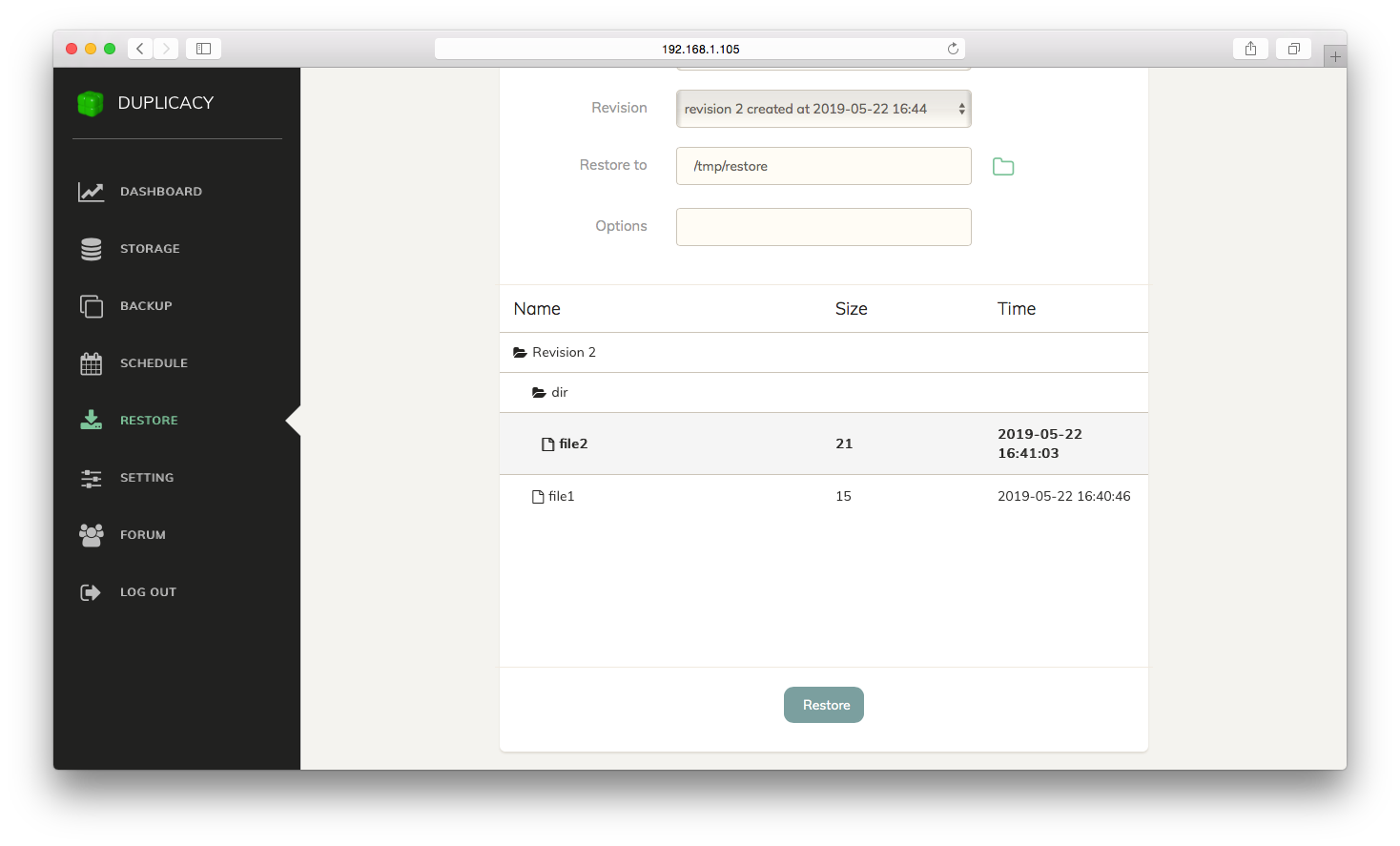
Duplicacy Web Edition Restore Files

Now you can highlight the file or directory that you want to restore. You can also expand a directory by clicking the directory icon. Finally, select a destination directory where restored files should go to, and click on the Restore button to start the restore operation.

Setting

On the Setting page, you can change several options such as the listening address, temporary and log directories, and passwords.
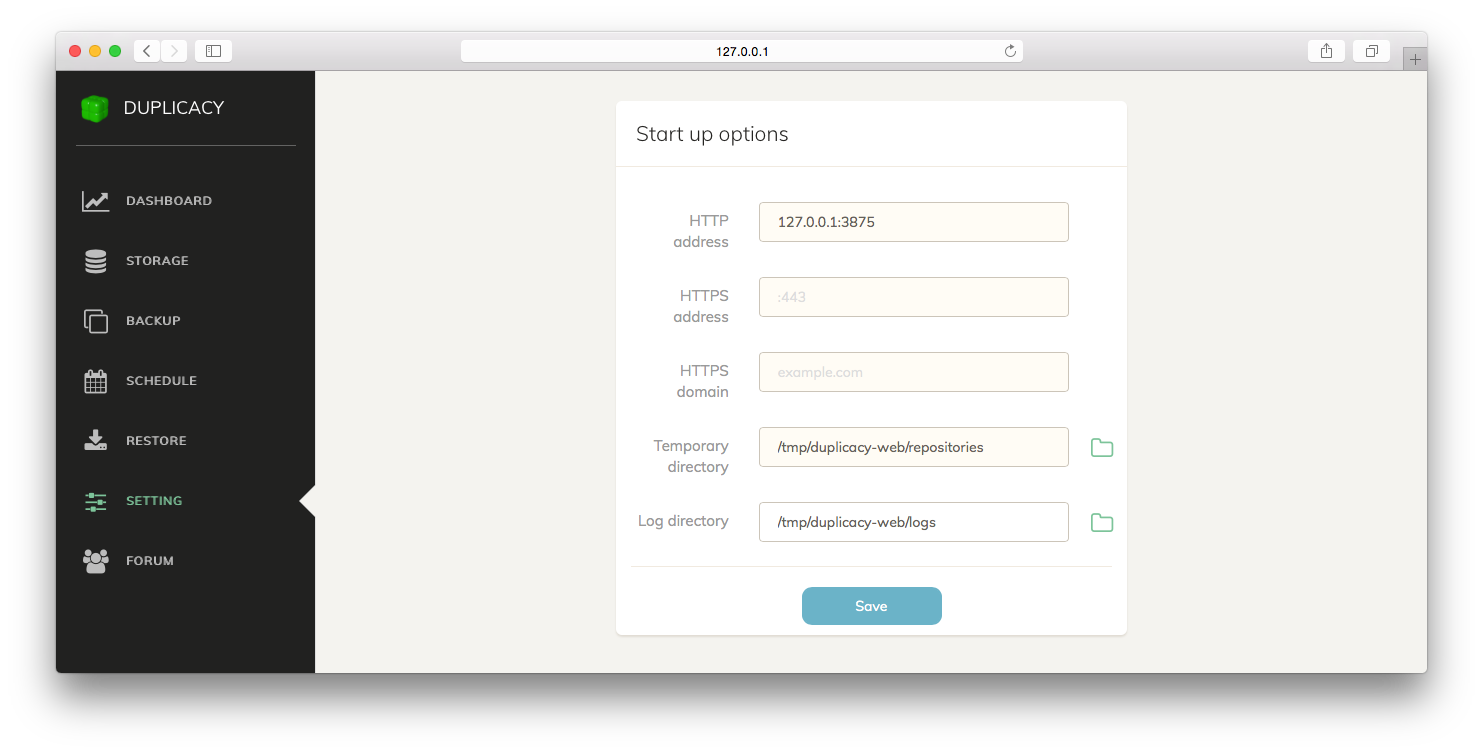
Duplicacy Web Edition Settings

By default Duplicacy Web Edition listens on localhost:3875 which means the Web GUI is only accessible from the local computer. You can change the IP address to the private/public network interface, so that you can visit the Web GUI from a different computer.

You can also enable HTTPS by specifying an HTTPS listening address as well as a domain name. Duplicacy Web Edition will automatically download a certificate from Let's Encrypt.

On this page, Temporary Directory is where Duplicacy Web Edition stores configurations on directories to be backed up. A local cache that enables faster downloads is also placed under this directory which may consume a large amount of disk space if you have many backups. Therefore you may consider moving this directory to a non-default location.

The Encryption Password is the master password we talked before that is used to encrypt storage-relate credentials. The Administration Password is the password that you can set so that a user wanting to access any page served by Duplicacy Web Edition will need to enter this password. You can control how often this password needs to be re-entered by setting the Administration Sessions Expiration time.
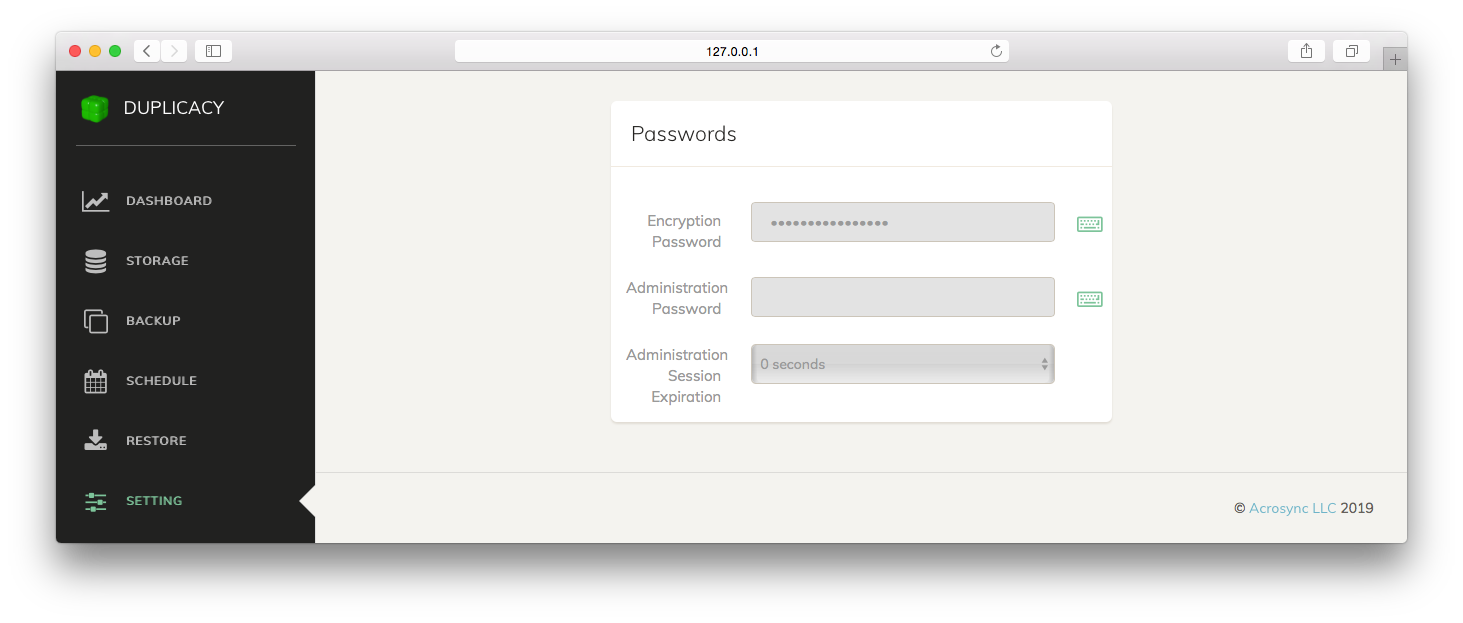
Duplicacy Web Edition Set Passwords

Install as Windows Service

Starting from version 1.1.0, Duplicacy Web Edition can be installed as a Windows service. Run the installer in an administrator DOS prompt, select `Install for All Users`, and you'll see the option to install the service at the last step.

Or you can run this command in an administrator DOS prompt after the program has been installed:

            \path\to\duplicacy_web_win_x64_1.1.0.exe -install-service
            

A new service, named `Duplicacy Web Edition`, will be installed and started automatically. You can then open the web browser at `127.0.0.1:3875`.

With the service installed you'll find settings and logs under `C:\ProgramData\.duplicacy-web`.

To uninstall the service, use the `-uninstall-service` option.

            \path\to\duplicacy_web_win_x64_1.1.0.exe -uninstall-service
            

Command Line Arguments

Windows backup troubleshooting and task guides

Install Duplicacy Web Edition on WindowsGetting Started · Install the Windows x64 Web Edition and configure it locally before creating a backup.Set Up Duplicacy on Windows 11Getting Started · Use Web Edition on Windows 11 with a local UI and a deliberate first restore test.Use Duplicacy on Windows 10Getting Started · Configure Duplicacy for an existing Windows 10 file library before relying on it.Your First Duplicacy Backup: Quick StartGetting Started · The fastest safe start is source folder, destination, unique Backup ID, then a restore test.Create a Duplicacy Master PasswordGetting Started · The Web Edition master password protects stored cloud credentials and is separate from storage encryption.Duplicacy Web Edition vs Native GUIGetting Started · The Web Edition is the recommended modern interface; the old Native GUI is being deprecated.Open the Duplicacy Web DashboardGetting Started · The local Web Edition interface normally opens in a browser on localhost:3875.Run Duplicacy Web Edition as a Windows ServiceGetting Started · For unattended jobs, the developer documents an installation option for a Windows service.Back Up to a Local Drive with DuplicacyBackup Storage · A local drive is a simple first storage target, but should be physically independent from the source.Use an External Hard Drive for Duplicacy BackupsBackup Storage · An external drive works as a storage destination if it remains available during scheduled jobs.Connect Cloud Storage to DuplicacyBackup Storage · Duplicacy supports several cloud backends; provider-specific fields depend on your selected storage.Set Up Duplicacy with Backblaze B2Backup Storage · Use the Backblaze B2 storage option when your Duplicacy version exposes it.Connect Duplicacy to Amazon S3Backup Storage · An S3 destination requires a bucket, regional settings and credentials with suitable access.Back Up over SFTP with DuplicacyBackup Storage · SFTP uses SSH access to a storage server or NAS and should be tested before enabling schedules.Back Up Windows Folders to a NASBackup Storage · A NAS can serve as an independent target through a compatible backend such as SFTP.Use OneDrive as a Duplicacy Backup DestinationBackup Storage · A cloud destination should be selected through Duplicacy's supported backend list, not by guessing at a synced folder.Use Google Drive for a Duplicacy Storage TargetBackup Storage · Select Google Drive only if it appears as a supported provider in your installed edition.Organize Multiple Backup DestinationsBackup Storage · Separate local and offsite storages reduce dependence on one device or account.Encrypt a Duplicacy Storage DestinationBackup Storage · For a new storage, the encryption password protects backed-up content separately from UI credentials.Copy a Duplicacy Backup to Another StorageBackup Storage · Copy jobs support a second destination when the target is configured to be copy-compatible.Back Up Windows Photos with DuplicacyBackup Jobs · Back up the real folder containing your photos and avoid selecting only a temporary import cache.Protect Documents with DuplicacyBackup Jobs · Versioned backups can help recover changed or deleted documents if revisions are retained.Back Up the Windows Desktop FolderBackup Jobs · Desktop files are easy to overlook; include the actual Desktop path in a deliberate backup job.Back Up Project and Work FoldersBackup Jobs · Business files may require a commercial Duplicacy license and careful retention controls.Create Include and Exclude RulesBackup Jobs · Duplicacy filters reduce unnecessary upload volume, but a wrong rule can omit essential files.Choose a Unique Duplicacy Backup IDBackup Jobs · A Backup ID identifies the source within a storage and matters when restoring on another computer.Understand Incremental Duplicacy BackupsBackup Jobs · After an initial snapshot, Duplicacy reuses deduplicated data rather than always uploading every byte again.How Duplicacy Deduplication WorksBackup Jobs · Duplicacy deduplicates stored chunks; lock-free design is part of its documented architecture.Back Up Two Windows PCs to Shared StorageBackup Jobs · Duplicacy can use the same storage for multiple computers when each source has a distinct Backup ID.Handle Open Files with Duplicacy on WindowsBackup Jobs · Windows VSS can help produce consistent snapshots of files in use where supported.Back Up Large Windows Folders ReliablyBackup Jobs · Large first backups need enough target capacity and a connection that stays available.Backup vs Sync: What Duplicacy ProtectsBackup Jobs · A versioned backup preserves recoverable revisions; ordinary sync often mirrors deletions or unwanted edits.Restore Files with Duplicacy Web EditionRestore & Recovery · Restore is a manual operation: select storage, Backup ID, revision and destination folder.Recover a Deleted Windows FileRestore & Recovery · Search earlier Duplicacy revisions for the file before it was deleted.Restore an Older File VersionRestore & Recovery · Choose a historical revision rather than restoring from the latest snapshot automatically.Restore Duplicacy Backups to a New ComputerRestore & Recovery · Recovery on another PC needs the original storage credentials and Backup ID.Restore a Complete FolderRestore & Recovery · Folder-level restores help recover a project hierarchy when a directory was changed or removed.Run a Monthly Duplicacy Restore TestRestore & Recovery · A recurring restore test validates recoverability beyond a green backup status.Find the Correct Backup RevisionRestore & Recovery · Duplicacy revisions are selected by storage and Backup ID before files can be restored.Restore to Another Directory SafelyRestore & Recovery · Use a separate destination to avoid overwriting the current working copy.Duplicacy Disaster Recovery ChecklistRestore & Recovery · A recoverable backup requires storage access, encryption credentials and a verified restore procedure.Schedule Automated Duplicacy BackupsSchedules & Maintenance · Schedules combine a start time, frequency, days and ordered jobs in Web Edition.Run Daily Windows Backups with DuplicacySchedules & Maintenance · Daily backups work best when the source and destination are usually available.Verify Backup Data with a Check JobSchedules & Maintenance · Check jobs help validate stored backup data and should be planned separately from backup jobs.Prune Old Duplicacy Backup RevisionsSchedules & Maintenance · Prune removes historical data under retention rules and can be irreversible.Schedule a Duplicacy Copy JobSchedules & Maintenance · Scheduled Copy jobs can support an offsite destination with compatible storage setup.Set Up Duplicacy Email NotificationsSchedules & Maintenance · Notifications can surface failed jobs, but only if delivery settings are valid.Check Whether Duplicacy Backups FinishedSchedules & Maintenance · The backup dashboard and logs are your first clues about incomplete jobs.Duplicacy Encryption ExplainedPrivacy & Security · Client-side storage encryption protects backup content, while the master password protects stored backend credentials.Keep Duplicacy Cloud Backups PrivatePrivacy & Security · Use least-privilege storage credentials and encryption for remotely stored data.Secure the Duplicacy Web InterfacePrivacy & Security · The management UI should normally remain local and protected by a strong administration password.Store Duplicacy Recovery Passwords SecurelyPrivacy & Security · A backup is not recoverable if all decryption keys are lost with the original PC.Manage Cloud Access Keys for DuplicacyPrivacy & Security · Scoped credentials limit the damage from accidental exposure of cloud backup secrets.Plan Duplicacy Backups for Ransomware RecoveryPrivacy & Security · Versioning helps, but resilience also depends on isolated storage and protected credentials.Fix a Failed Duplicacy Backup JobTroubleshooting · Investigate storage connectivity, credentials, source paths and the job log before retrying.Troubleshoot a Duplicacy Storage ConnectionTroubleshooting · A connection error often points to the provider URL, credentials or network access.Fix Duplicacy Web Login ProblemsTroubleshooting · Local dashboard access depends on the correct management address and configured administration password.Understand Duplicacy Port 3875 on WindowsTroubleshooting · The Duplicacy Web Edition default listening address is localhost:3875.Make Duplicacy Backups More Reliable When SlowTroubleshooting · Initial uploads can be slow because they transfer more content and depend on the destination.Why a Duplicacy Restore May FailTroubleshooting · Most restore failures should be investigated before changing or pruning any existing storage.Fix Missed Scheduled Duplicacy BackupsTroubleshooting · A missed schedule can result from a sleeping PC, absent external drive or inactive service.Resolve Duplicacy Backup Disk Space ErrorsTroubleshooting · A full destination or local cache can interrupt large backup and restore operations.Duplicacy vs Restic for Windows BackupsAlternatives & Decisions · Both tools can form part of a backup workflow, but their interfaces and commands differ.Duplicacy vs BorgBackup on WindowsAlternatives & Decisions · Prioritize your Windows operating environment and restore workflow before picking a backup tool.Duplicacy vs FreeFileSync: Backup or Synchronization?Alternatives & Decisions · Duplicacy focuses on versioned backup revisions, whereas file sync serves a different workflow.Duplicacy CLI vs Web Edition for WindowsAlternatives & Decisions · Choose CLI for scripting and Web Edition for a graphical scheduled workflow.